

By the Translationary Editorial Team | 3 Min Read | Category: [ Accessibility & Document Remediation ]
PDFs are still widely used for reports, manuals, contracts, forms, and other business-critical documents. But a PDF that looks polished on screen can still be difficult or impossible to use with assistive technology. In accessible PDFs, structure matters: tags, reading order, real text, image descriptions, table markup, form labels, and language settings all help screen readers and other tools interpret the file correctly. Section508.gov, Adobe, and W3C all treat logical structure and tagging as foundational to PDF accessibility.
At Translationary, we believe content should bridge gaps, not create them. Accessibility is not just a nice-to-have feature. It is a core part of inclusive communication, especially when documents are being shared across languages, formats, and audiences.
If you want your PDFs to be usable by a wider audience, these are five of the most common accessibility issues to fix first.
1. Missing or Incorrect Tags and Reading Order
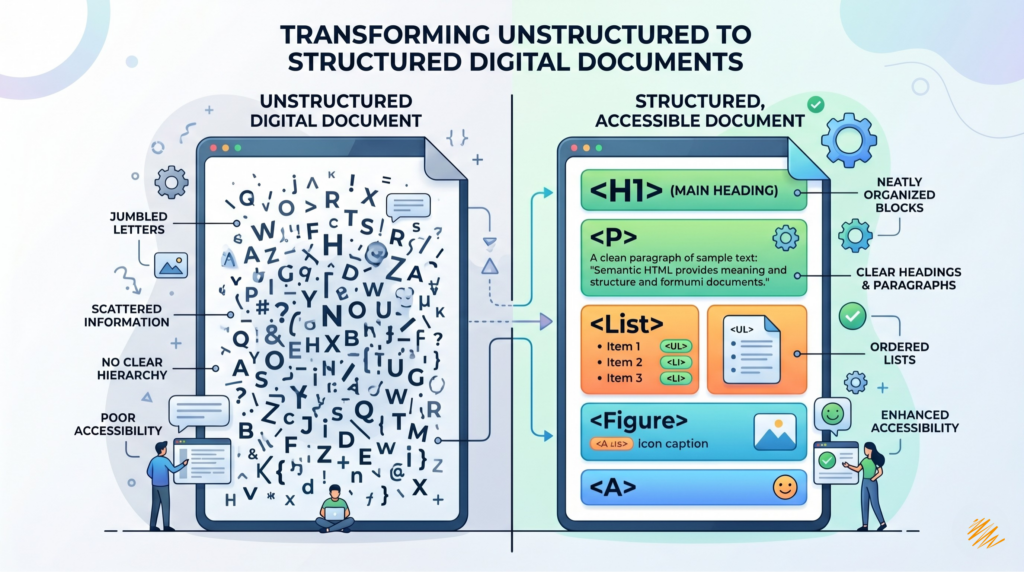
Tags are the structural framework of an accessible PDF. They tell assistive technologies what is a heading, paragraph, list, table, image, or link, and they help preserve a meaningful reading order. When tags are missing, incomplete, or out of sequence, users may hear content in the wrong order or lose the document hierarchy entirely. Adobe also notes that automatic tagging can misread complex layouts such as multiple columns, irregular alignment, borderless tables, and non-fillable forms.
How to fix it:
Start with an accessible source file whenever possible, then export a tagged PDF. In Acrobat Pro, use Prepare for accessibility and Automatically tag PDF as a starting point, but always review the Tags panel and reading order manually. If pages were inserted, replaced, or merged later, check the tag tree carefully, because those edits can leave tags out of sequence.
2. Scanned PDFs Without OCR
A scanned PDF is often just an image of text. That means users may not be able to search, select, or reliably read the content with assistive technology. W3C specifically recommends OCR when the original source file is unavailable and the only version you have is a scanned PDF. Adobe’s accessibility workflow also flags scanned text as a common issue that needs further action.
How to fix it:
If you have the original source document, rebuild from the source and export a tagged PDF. If you only have a scanned file, run OCR first to convert the image-based text into actual text, then remediate the structure, tags, reading order, images, and tables. OCR is essential, but it is not the final step.
3. Missing or Poor Alt Text for Meaningful Images
Charts, diagrams, screenshots, logos, and other meaningful visuals need text alternatives so users who cannot see the image still receive the same information. W3C’s PDF techniques specifically call for text alternatives through the image tag’s /Alt entry. Decorative images, on the other hand, should be marked so they do not create unnecessary noise for screen reader users.
How to fix it:
Add alt text to informative images and keep it concise and purposeful. If an image is purely decorative, mark it as decorative or artifact so assistive technology ignores it. The goal is not to describe every visual detail, but to preserve the image’s meaning or function.
4. Unstructured Tables and Unlabeled Form Fields

Tables and forms are two of the most common failure points in accessible PDFs. A table without proper structure may be read as a confusing stream of text instead of as rows and columns with meaningful headers. Forms have their own challenges as well: visible labels are not automatically exposed to screen readers, and field descriptions often need to be provided through tooltips. Screen reader users also depend on correct tab order and properly tagged fields to navigate forms efficiently.
How to fix it:
For tables, make sure header rows and data cells are marked up correctly. For forms, create actual fillable form fields, provide meaningful tooltips, tag the fields, and verify tab order. In PDFs, accessibility requires more than just visually placing elements on the page.
5. No Defined Document Language
If the document language is not set correctly, assistive technologies may pronounce the content incorrectly or apply the wrong speech rules. This is especially important for multilingual organizations and for files that include content in more than one language. W3C’s PDF techniques address both the default document language and language changes within specific sections of a file.
How to fix it:
Set the default document language in the PDF properties, and if the document contains multiple languages, mark those sections appropriately in the tag structure. In Acrobat Pro, the document language can be set in the file properties, but multilingual passages may require more detailed tagging.
Best Practice: Fix the Source, Then Verify the PDF
The best accessible PDFs usually start as accessible source documents. Adobe recommends creating structure in the authoring file first, then exporting to tagged PDF, because that preserves more of the original hierarchy. After export, use Acrobat’s accessibility tools to check the file, then manually review tags, reading order, images, tables, forms, and language settings. Adobe’s own guidance makes clear that automated checks alone are not enough for complex documents.
Why This Matters
Accessible PDFs are easier to use, easier to navigate, and easier to distribute responsibly across audiences, formats, and devices. For organizations working in multiple languages, accessibility also needs to survive translation, formatting, and final delivery. A document is not truly ready if part of the audience cannot use it independently.
At Translationary, we help clients make multilingual documents both understandable and accessible. That includes structure, tagging, language settings, and the details that help real users access real content.
Ready to make your content accessible to the world? Contact Translationary Today for a quote on document remediation and localization.