People use screen readers, voice control, and larger text settings on their phones every day. As a result, mobile app accessibility decides whether those users can finish a task or give up on your app.
For teams selling to US federal agencies, the stakes are higher. Section 508 sets accessibility requirements for the software those agencies buy, and that includes native mobile apps. This guide explains what Section 508 and WCAG 2.2 expect from an app. It also shows how to test for it before release.

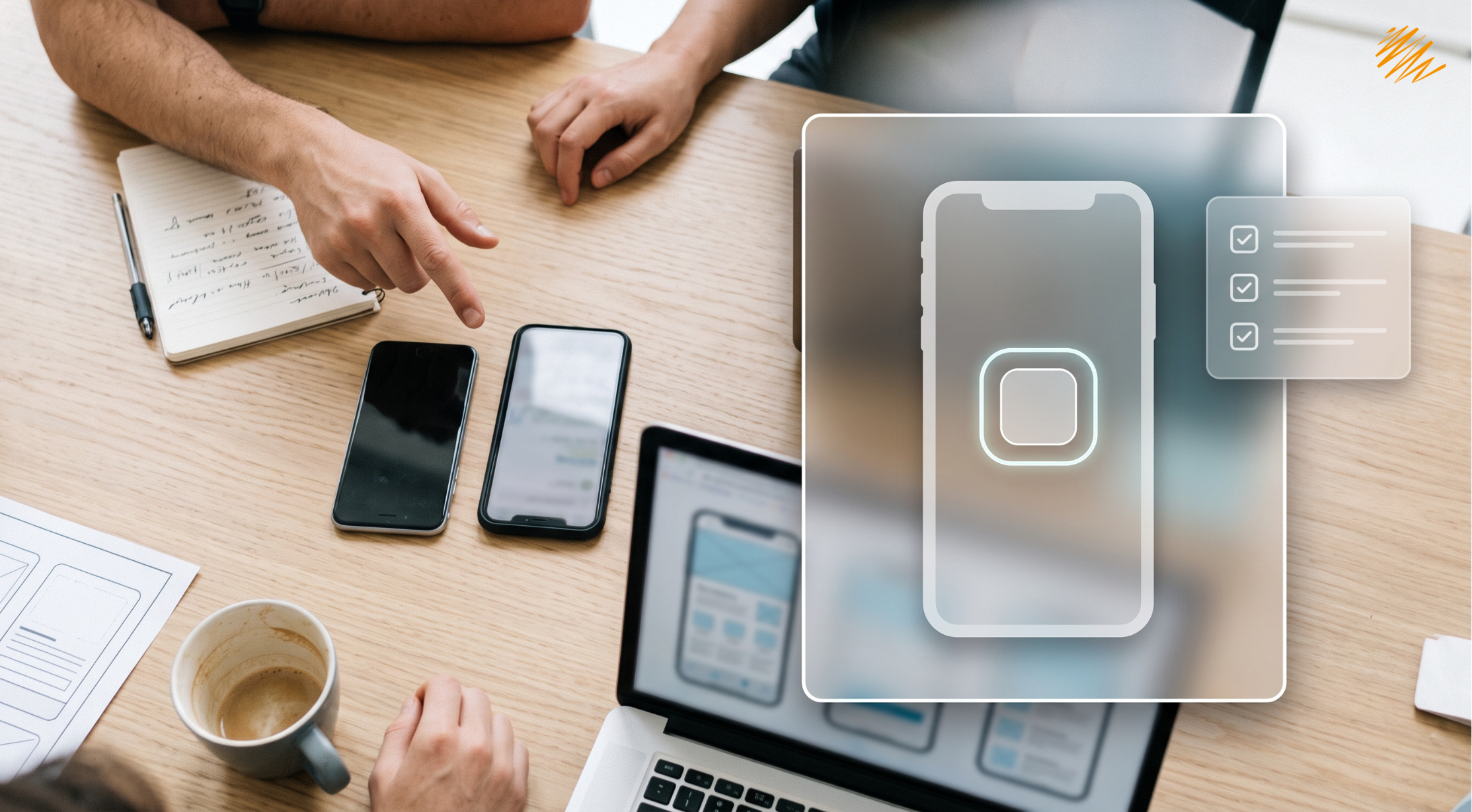
Mobile app accessibility starts with testing on a real device.
What Section 508 and WCAG 2.2 Mean for Mobile App Accessibility
Section 508 is the US law that requires federal agencies to buy accessible information and communication technology. Its technical standards incorporate WCAG 2.0 Level AA. They apply to web content and to other electronic content, such as software and native mobile apps.
WCAG 2.2 is the newer version. According to the W3C’s overview of WCAG 2.2, it adds nine success criteria and removes one obsolete one. Because it extends the older version, designing to WCAG 2.2 Level AA puts a team in a strong position. However, a buyer may still ask for a report against the exact criteria the contract names.
One more point matters here. WCAG was written for the web, so teams apply it to apps by interpretation. The W3C publishes guidance for this, known as WCAG2ICT, which explains how each criterion applies to non-web software.
In practice, federal buyers usually ask vendors for an Accessibility Conformance Report. Many teams write it on the VPAT template. Testing against the criteria below also gives you the evidence to fill it in honestly.
Six WCAG 2.2 Criteria That Shape Mobile App Accessibility
WCAG 2.2 added nine criteria. However, these six have the most direct effect on how a phone app is designed.
Tap targets need at least 24 by 24 CSS pixels, or enough spacing around them. On a phone, aim higher. Apple’s guidelines suggest 44 points, and Google’s Material guidance suggests 48 dp.
Any action that needs a drag must also work with a single tap. For example, a reorderable list needs up and down buttons, not only a drag handle.
Login cannot depend on memorizing, transcribing, or solving a puzzle unless an alternative exists. Let people paste passwords, use a password manager, or sign in with biometrics.
Do not ask people to retype information they already gave in the same process. Pre-fill the shipping address from the billing address, for instance.
A focused control cannot be fully hidden behind other content. On a phone, the on-screen keyboard or a sticky bottom bar often covers the active field.
Help options, such as a support link or chat button, should appear in the same place on every screen where they are offered.
Where Mobile App Accessibility Usually Breaks
Most failures come from a short list of habits. For example, reviewers see the same five problems again and again.
- Unlabeled icon buttons. A screen reader announces “button” and nothing else, so the user cannot tell what it does.
- Custom gestures with no alternative. Swipe-to-delete works only for people who can swipe.
- Text that does not scale. Fixed font sizes ignore the system text-size setting, and layouts clip when text grows.
- Low contrast and color-only cues. A red or green status with no icon or label fails users with color blindness.
- Video without captions. Captions start with an accurate transcript, which our guide to audio and video transcription explains.
Build Mobile App Accessibility Into Every Sprint
Accessibility usually costs the least when it starts at design. For that reason, treat it as part of every sprint, not as a final audit.
- Design. Check contrast, target sizes, and focus order in the mockups before any code exists.
- Build. Use native components where possible, because they ship with built-in accessibility support. Also add labels, roles, and states to every custom control.
- Test. Run the routine below on every build. In addition, add automated checks to your pipeline for the easy catches.
- Release. Record what you tested and what remains open. That record feeds your conformance report, and it shows buyers you take the standard seriously.
A Pre-Release Test Routine for Mobile App Accessibility
You do not need a lab to catch the biggest problems. Instead, run this routine on a real device before every release.
Automated scanners help, but they catch only part of the problems. Manual testing with real assistive technology finds the rest.
Mobile App Accessibility Across Languages
An app that works well in one language can break in another. German labels run longer and may clip. Right-to-left languages mirror the layout. Screen readers also need the correct language tag to pronounce text properly. Likewise, translated apps must translate the spoken labels on icons and images.
Plan for this early. Build layouts that grow with the text, and keep words out of images. Then review each translated version with a screen reader. Our guides to accessible-by-design localization and the software localization checklist cover the process in more detail.
Building an app for federal or global users?
Our team can help you localize and review your app content so it stays accessible in every language.
Talk to Our Team